
PrinterShare Premium Key
Mobile DynamixBusiness
4.48.78K Reviews
- Version
- 5.5
- Installs
- 500.00K
- Age Rating
- Everyone
Screenshots
Our Review of PrinterShare Premium Key
 Analysis by Appyee
I judge a phone-printing app less by how many options it promises than by whether it gets a document from my screen to paper without turning a quick errand into a troubleshooting session. PrinterShare Premium Key is a paid unlock for PrinterShare, a business app from Mobile Dynamix. Its main appeal is practical: it opens up printing to Wi-Fi and Bluetooth printers when I want to work from a phone rather than move a file to a computer first. The app has a 4.4 average from around 42,000 ratings, and it has passed 500,000 installs. Those figures suggest a well-used tool, but the real question is whether its approach suits the way you print.
Where the first print can get stuck
The purchase is a key, not a physical accessory, so I would think of it as unlocking premium printing in the PrinterShare setup rather than as a printer or a standalone piece of hardware. That distinction matters if you are searching for an app that replaces your printer’s own software. The key is useful only as part of a phone-to-printer workflow, and a successful first job still depends on the printer, connection, and document cooperating.
That is where expectations can get ahead of reality. “Wireless” does not mean every printer is automatically visible from every phone, and a printer that works from a laptop may not be ready to accept a job from a mobile app. Before paying, I would check that your intended printer can be reached over the connection you plan to use, then try a simple, low-stakes document. A short test page is a better way to learn the path than discovering a mismatch with a time-sensitive form.
Setup checks that save time
When a printer does not appear, I would check the basics in a deliberate order rather than repeatedly tapping search. Confirm the printer is powered on and ready, then make sure the phone and printer are connected in a way the printer supports. For Wi-Fi, check that both are on the intended network; for Bluetooth, verify that the printer is available for pairing and that the devices are close enough to communicate. These are ordinary connection checks, but they prevent blaming the app for a printer that is simply offline or unreachable.
It also helps to separate discovery from printing. First see whether the printer shows up, then send a modest test job, and only after that adjust copies, color, or quality. If a document fails while a small test succeeds, the file or its format may be the issue rather than the connection. I would keep a plain PDF or another familiar file handy as a comparison. That gives you a useful clue without changing several settings at once.
Using PrinterShare in everyday work
First things first, setting up PrinterShare Premium Key is a breeze. You install the app, and it guides you through the setup process with clear instructions. Once you're done, you can print directly from your phone or tablet to any nearby or remote printer. It supports a wide range of printer models, which is a huge plus. I mean, who wants to fiddle around trying to match compatibility, right?
Features That Make Life Easy
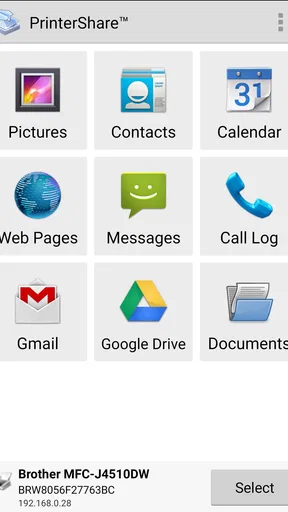
Alright, let’s talk features. This app isn’t just a one-trick pony. It boasts a variety of functionalities that make it super useful. You can print documents, emails, photos, contacts, and even web pages. And the best part? You don’t need to transfer files to your computer first. That’s right, it’s all done directly from your device, making the whole process faster and less annoying.
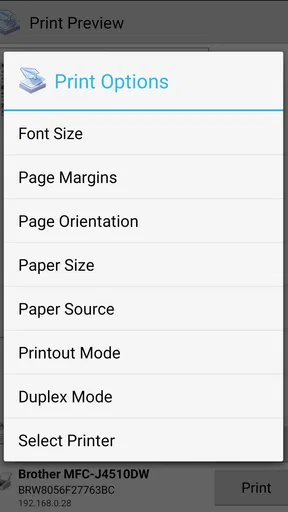
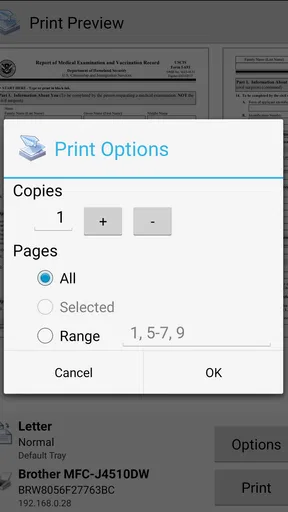
One feature I particularly love is the ability to print in different formats. Whether you’re dealing with Word documents or PDFs, PrinterShare Premium Key has you covered. Plus, you can choose between color or black and white, adjust print quality, and even select the number of copies. It’s like having a mini office in your pocket.
Connecting to Your Printer
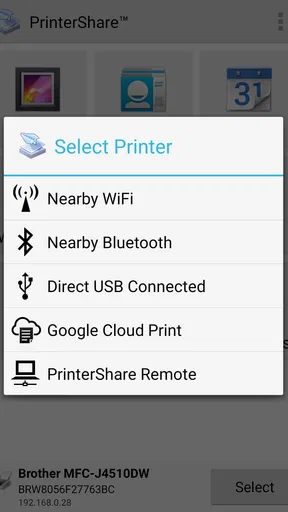
Connecting to a printer is typically where these apps can fall apart, but not this one. With PrinterShare, you can connect via Wi-Fi, Bluetooth, or even USB. If your printer is networked, it’ll find it for you. And if you’re away from your printer, you can still print by using the app's remote printing feature. This is perfect for those of us who are always on the go but still need to get stuff done.
And don’t worry if you’re not tech-savvy. The app’s interface is user-friendly and intuitive. You don’t need to be a tech guru to navigate through the options and settings. Just follow the prompts, and you’re good to go.
Choosing the paid key sensibly
The key costs $9.99, so I would treat it as a convenience purchase, not an automatic upgrade everyone needs. If you print from a phone often, especially when a computer is inconvenient, unlocking premium can make the phone a more useful part of your work routine. If you only print once in a while and your printer’s built-in mobile option already handles your needs, the extra purchase may not earn its keep. The content rating is Everyone, and the current version is 5.5, with Android 5.0 as the minimum OS requirement.
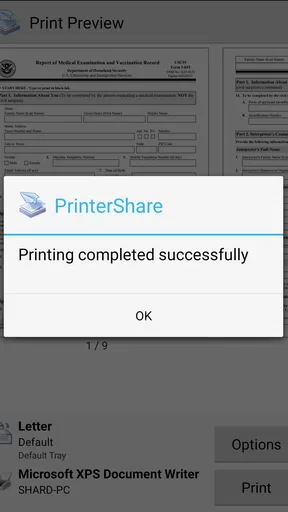
A practical example: I might receive a signed form by email while away from my desk, need a paper copy for an appointment, and have access to a nearby compatible printer. Printing from the phone avoids sending the attachment to myself, opening a laptop, and hunting for a cable. But I would not wait until the appointment morning to test that route. A prior trial with the same printer and connection is the difference between a useful shortcut and a last-minute gamble.
Picking the right workflow
Compared with a printer maker’s own app, PrinterShare is appealing when you want one mobile printing route that is not tied to a single printer brand. The trade-off is that a manufacturer’s app may be the simpler choice for someone who owns one printer and already gets reliable results with its official software. Compared with sending a file to a computer and printing from there, PrinterShare saves a transfer step, but a computer remains a sensible fallback for complicated layouts or files that need careful inspection before they go on paper.
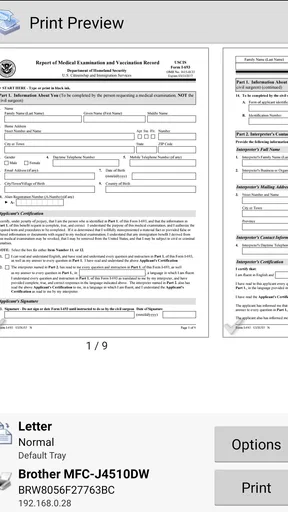
I would also use the available print choices deliberately. For a draft or a document meant only for quick reference, black and white can be a sensible way to avoid using color unnecessarily; for a photo or a page where color carries meaning, check the preview and settings before committing. When printing several copies, confirm the count before sending the job. Those small checks are not special tricks, but they prevent the common waste of producing the right file with the wrong settings.
Recovering a stalled job
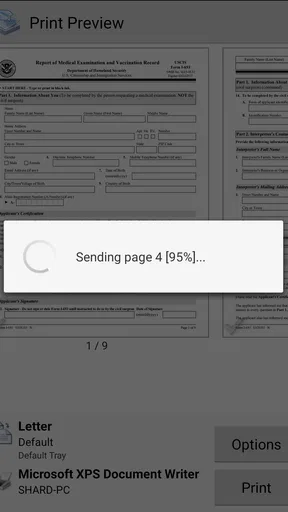
If a job seems stuck, I would avoid sending it repeatedly at once. Check the printer’s own status first, then confirm the phone still has the expected connection. A paused printer, an empty paper tray, or a lost network link can leave a job waiting even when the app has done its part. If the printer is ready but nothing progresses, cancel or clear the pending attempt where possible before trying again; repeated submissions can make it harder to tell which copy is current.
For a file-specific failure, try a simpler document and compare the result. If that prints, return to the original and inspect its format or complexity. For a discovery problem, restart the connection path rather than changing the document: reconnect Wi-Fi or Bluetooth, make sure the printer is available, and search again. This methodical split between connection trouble and file trouble is more useful than assuming every failed print has the same cause.
When another option is better
PrinterShare is not the right answer if you rarely print from a mobile device, do not have access to a compatible printer, or need a workflow that has already been approved and standardized by an employer. In those cases, the printer maker’s app, a trusted office computer, or the organization’s established print process may be more predictable. I would also favor a computer when a document’s page breaks, margins, or formatting must be checked closely; phone printing is convenient, but it does not remove the need to review what will come out.
For occasional photos, compare the result you get from the phone workflow with what you expect from your printer’s own tools before relying on it for a special print. For work documents, a quick glance at the selected paper and color settings can prevent an avoidable reprint. The useful habit is to match the method to the job: use mobile printing for ordinary, time-saving tasks, and switch to a more controlled route when the output needs extra attention.
Reliability and Support
One thing that really stands out to me is the reliability of PrinterShare. In all my testing, I haven’t encountered any major hiccups. The connection remains stable, and the print quality is consistently high. Plus, if you ever run into issues, their customer support is responsive and helpful. It’s always nice to know there’s a safety net if things go awry.
They’ve also got a comprehensive FAQ section and troubleshooting guides, which means you can solve most common issues on your own without having to wait for a response.
My practical verdict
In an age where we’re constantly juggling tasks and trying to maximize our time, PrinterShare Premium Key offers a seamless solution to keep your productivity flowing. Whether you’re printing personal documents or work-related materials, this app ensures you’re not tied to your desk. So, if you’re someone who values flexibility and efficiency, give it a shot. Trust me, you won’t look back.
I would make that recommendation more specific: the premium key is most compelling for people who regularly need to print documents or photos from a phone and can test their printer connection ahead of time. It is less compelling if your current printer app already works well or printing is a rare chore. For me, its value is not that it makes every printer problem disappear; it is that it can remove the file-transfer detour when the phone, printer, and job are a good match.
Verdict
Strengths of PrinterShare Premium Key
- Easy integration with various printer brands.
- Supports multiple file formats for printing.
- User-friendly interface for quick setup.
- Remote printing over the internet is possible.
- Offers high-quality print outputs.
Limitations of PrinterShare Premium Key
- Initial setup might be confusing for beginners.
- Some features require a stable internet connection.
- Limited support for very old printer models.
- Premium version is relatively expensive.
- Occasional compatibility issues with newer phones.
Other Releases by Mobile Dynamix
View All
PrinterShare Mobile Print
Business4.1

CrossMe Color Premium Nonogram
Puzzle4.8
Similar Picks in This Category
View All
LinkedIn: Community & Network
LinkedIn3.8

Zoom Workplace
zoom.com4.1

Microsoft Teams
Microsoft Corporation4.6

Meta Business Suite
Meta Platforms, Inc.4.6

Webex Meetings
Cisco Systems, Inc.4.5

TeamViewer Remote Control
TeamViewer4.4
Frequently Asked Questions
What is PrinterShare Premium Key and how does it enhance my printing experience?
PrinterShare Premium Key is an upgrade for the PrinterShare Mobile Print app, providing enhanced features like unlimited printing directly from your Android or iOS device. With this key, you can print documents, photos, and more without restrictions on printers connected over Wi-Fi, Bluetooth, or USB, making it a versatile solution for on-the-go printing needs.
How do I set up PrinterShare Premium Key on my device?
To set up PrinterShare Premium Key, first download the PrinterShare Mobile Print app from the Google Play Store or Apple App Store. Once installed, purchase the Premium Key to unlock full functionality. Open the app, follow the on-screen instructions to connect to your printer, and enter the Premium Key when prompted to activate the premium features.
Which printers are compatible with PrinterShare Premium Key?
PrinterShare Premium Key supports a wide range of printers, including those from major brands like HP, Canon, Epson, and Brother. It allows printing via Wi-Fi, Bluetooth, and USB connections. It's recommended to check the PrinterShare website for a detailed list of compatible printers to ensure seamless integration with your specific model.
Does PrinterShare Premium Key offer cloud printing capabilities?
Yes, PrinterShare Premium Key supports cloud printing, allowing you to print documents remotely from the cloud. This feature enables you to print files stored on Google Drive, Dropbox, and other cloud services, providing flexibility and convenience for printing documents from anywhere, without needing a direct connection to a printer.
Is a separate app required for PrinterShare Premium Key on iOS and Android?
No separate app is needed for the PrinterShare Premium Key on both iOS and Android devices. The key is an upgrade for the existing PrinterShare Mobile Print app, available on both platforms. Once you've downloaded the app and purchased the Premium Key, you can activate it within the app to access premium features across devices.
